




When it comes to SEO and digital marketing, every tool counts to maximise your visibility on the web. Among the most powerful resources available to website owners is Google Search Console. This free platform provided by Google offers valuable data on how your site is indexed and discovered by users through the world’s most used search engine. You just need to know how to use it well. Here are a few tips.
What is Google Search Console?
Google Search Console (formerly Google Webmaster Tools) is a free service offered by Google that lets website owners monitor and manage the presence of their site in Google search results. In other words, it is your window onto how Google sees your site.
More precisely, Google Search Console offers features that let you control how often Google’s robots crawl your website. You can also track daily the keywords and queries that led to visits to your site through the search engine. This tool is therefore an essential and effective resource to optimise your SEO and so improve your ranking.
What features are available in Google Search Console?
Google Search Console offers a variety of features:
The URL Inspection tool
This tool lets you check whether a page is indexed by Google and gives details about its indexing. Similar to the “Fetch as Google” tool, it shows the page as Googlebot sees it. It lets you update pages, work on mobile navigation, check robots.txt files, tags, and so on.
The performance report
This report is essential for understanding how the site performs. It gives metrics on queries, pages, countries, devices, and so on. It offers filters for job listings, rich results, AMP pages, and so on. You need it to identify the pages that perform well, those with a low click-through rate, and so on.
The Discover report
Added in 2019, this report analyses how users discover the site, notably through Google Discover. It lets you compare content performance on Discover and on Google Search.
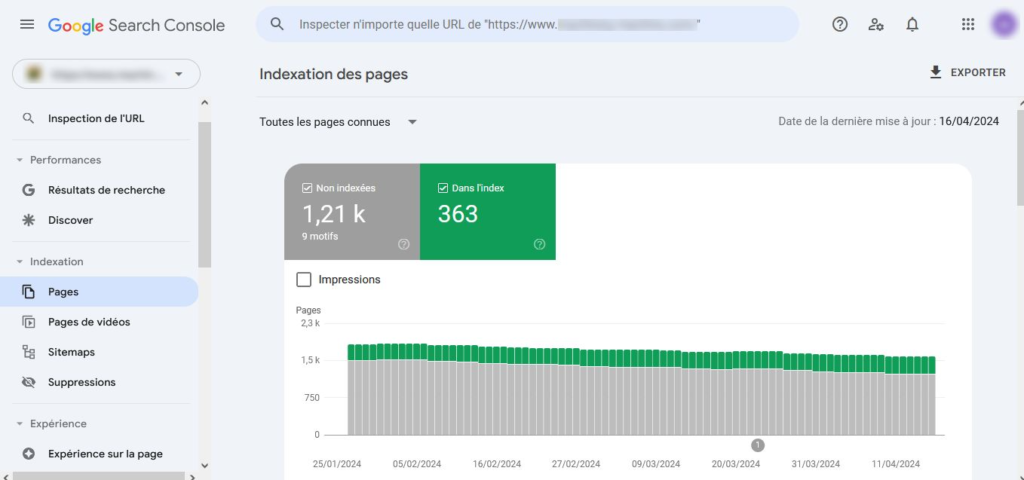
The index coverage report
This section provides data on page indexing and crawl errors. It is very useful for detecting index bloat, problems with the robots.txt file, and so on.
The speed report
Thanks to this report, you can identify page speed problems directly in Search Console. It also lets you track changes over time and identify well-optimised URLs.
Mobile usability and AMP
This feature assesses the mobile usability of indexed pages and identifies common errors such as content wider than the screen, clickable elements too close together, and so on. The AMP report lets you track pages in AMP format and detect problems.
Links report
This report shows the sites that link to your site and helps you monitor backlinks to detect anomalies and spam links.
How does Google Search Console help you with your SEO?
Google Search Console is truly an indispensable tool to boost your SEO. With it, you can for example:
- Keep an eye on your ranking in search results, not only overall, but also for each page and each keyword.
- Track the search traffic generated by each page and each keyword, which gives you a clear idea of what works and what does not.
- Watch how your performance changes over time, so you can adjust your strategy if needed.
- Show concretely the impact of your content creation and SEO optimisation efforts.
- Spot new opportunities to attract more traffic to your site.
- Identify areas for improvement to optimise your content even further.
How do you access Google Search Console?
Google Search Console (GSC) offers a series of free tools and reports designed to let website administrators monitor and manage the visibility of their sites in Google search results.
To access this platform:
- Sign in to your Google account.
- Go to Google Search Console at this URL: https://search.google.com/search-console/.
- On the interface that appears, you are asked to confirm ownership of your site. To do so, select the “add property” option and enter your site’s URL prefix or its domain. You will then have to verify ownership of the site by confirming your status as owner.
Google offers various methods to verify ownership of your site:
- Uploading an HTML file to your site.
- Inserting an HTML tag on the homepage.
- Using Google Analytics or Google Tag Manager.
- Logging in to your domain name provider to add a DNS record.
A few tips for using Google Search Console
Analyse the site’s performance on Discover
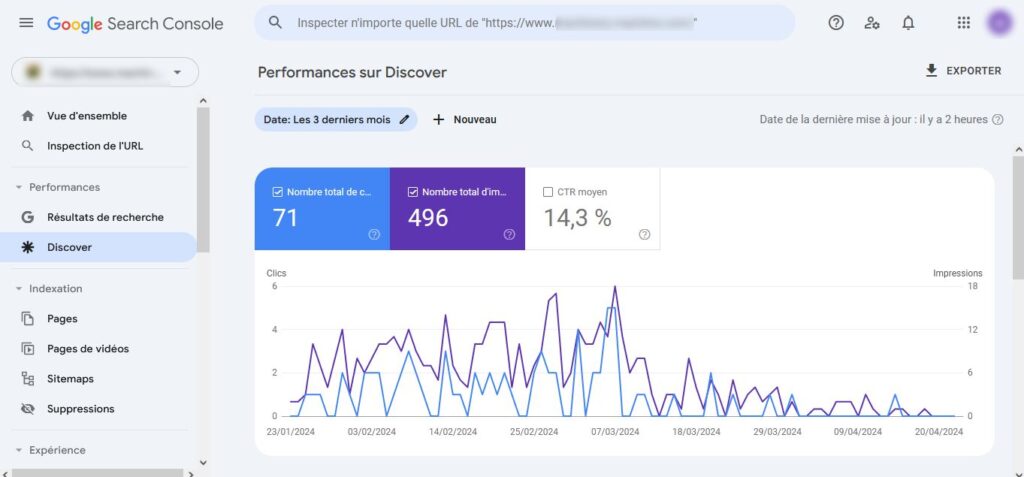
Only the platforms whose pages have been shown on Discover have access to this report. This report is very important because Google Search Console is the only way to get a detailed analysis of traffic coming from Discover. As with Google News, the data in the timeline includes the total number of clicks, impressions, and the average click-through rate. You can also apply custom filters.
Other data available includes:
- The most viewed pages,
- The countries generating the most impressions and clicks,
- The types of devices most used to visit your site.
Analyse your site’s performance in Google search results
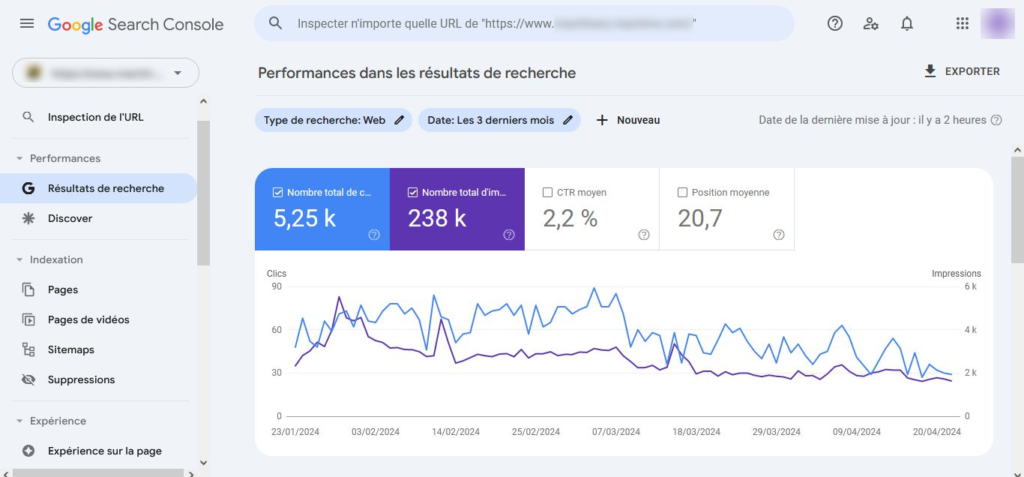
In the “Performance” section, you will find a set of detailed data on search results and on traffic coming from Google News and Discover. You can explore the statistics specific to each traffic source and apply filters to refine the data.
The search results performance report gives a valuable view of metrics such as the number of clicks, total impressions, average click-through rate (CTR) and average position in search engine results pages (SERPs). Filters are available so you can target the data most relevant to you.
As you scroll through the traffic timeline, you will also find extra tabs that give you information on:
- The queries generating the most traffic to your site
- The most visited pages, and so on.
Indexing a URL
Here are the steps to follow:
- Inspect the page’s URL.
- Select the “Request indexing” option.
- If the page is judged indexable, it will be added to the queue for indexing. Otherwise, the request cannot go ahead.
For efficient indexing management, especially when there are many new pages or updates, it is recommended to submit a sitemap. It is also advisable to mark updated pages with the “<lastmod>” tag to optimise this process.
CONCLUSION
In conclusion, mastering Google Search Console is a major asset for your digital marketing strategy. By understanding how to use its features effectively, you can not only optimise your visibility on the web, but also make informed decisions to keep improving your ranking and attract more traffic to your site. Make the most of this free tool offered by Google to maximise the impact of your marketing efforts.
If you need help optimising the SEO of your website, do not hesitate to contact our team!